
For a site with the tagline “A blog, mostly about video games…” I sure have not been writing many articles about video games. I’ll work on that! I just played a Kirby game for the first time, and I have opinions!
But, for now, I want to go back to this label I printed and stuck on a laptop a few weeks ago:
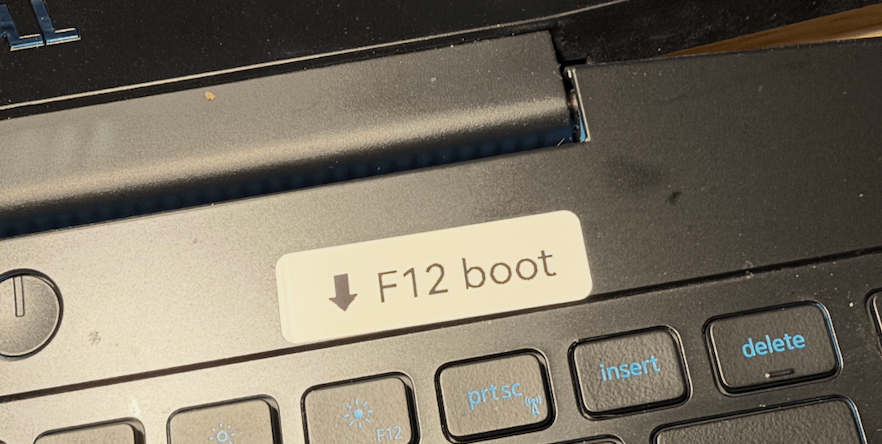
The purpose of this sticker was to make it easier for me to remember what key to hammer on during the boot cycle in order to tell the laptop that I wanted to boot into Windows instead of I-use-Arch-btw-Omarchy.
This sticker shouldn’t be necessary, and that’s been bugging me.
Omarchy includes the Limine boot loader, and that loader is perfectly capable of choosing different operating systems. I’ve used it to make a CachyOS system that could dual-boot Windows in the past, and it’s worked great.
For whatever reason, however, I could not get this to work on Omarchy. I could run limine-scan and it would show me an entry for Windows Boot Manager and I could tell it to add that to limine.conf and it would tell me that it did… and then it just wouldn’t. I could hand-edit limine.conf to put the entry in, but trying to select Windows Boot Manager in the menu when I booted would invariably error out.
I also couldn’t just choose “Windows Boot Manager” from the screen that came up when I hammered F12 during boot. I could boot into Windows, but only by choosing to boot directly from the SSD with Windows installed. If I tried to run “Windows Boot Manager”, it would result in Dell SupportAssist running instead of Windows booting.
I’ve been generally putting up with this, but for some reason it ticked over from “mild annoyance” to “I need to hyper fixate on this until it works” yesterday.
My first attempts at correcting it managed to make things worse, as is usually the case, and at one point I wound up with a Windows drive that wouldn’t boot at all. I learned an important lesson: do not try to switch the SATA mode on a Dell Laptop from RAID to AHCI without knowing what you are doing.
What kept frustrating me, and why I started doing dumb things like messing around with SATA modes, was this: ALL of the instructions I was finding on the web, and everything that Gemini and duck.ai were telling me, were variations of “Find the EFI partition. Mount it as a drive letter. Run bcdboot and point it at that drive letter. Everything is solved! Go have ice cream.”
First, I’m lactose intolerant. Second, these instructions were not working.
When I ran diskpart from Windows, it showed me that I had five partitions on the laptop’s internal SSD, and one of them was a 650MB FAT32 partition with a volume label of “ESP” which I was assured meant “EFI System Partition”, and mounting this partition with a drive letter let me look at the contents of the partition and see an “EFI” directory. Running bcdboot made changes to it without throwing any particularly egregious errors, and then booting the laptop simply didn’t work.
My assumption was that the other partitions were (a) the data partition and (b, c and d) just random OEM partitions to hold crud like Dell SupportAssist.
What’s that about assumptions, again?
Anyway, at one point I was sitting in front of the laptop, ready to just blow away both the Linux and Windows drives and start completely over from scratch. I even had the USB installers prepped and ready to roll, and I was going to rage-install both and pretend not to care about the data on either drive.
And then, a miracle happened.
I realized that this was a really dumb idea that would take me hours, and that wasn’t guaranteed to work, and I stopped to take inventory of my current situation.
I had a Windows drive that would boot.
I had a Linux drive that would boot.
Neither of these were broken.
Conclusion: something that the computer does before it loads either MUST be the problem.
“How does the boot process WORK, anyway?”
See, while UEFI booting has been pretty much the default since Windows 8, my brain needed to unlearn everything it knew about how booting USED to work. It isn’t just machine code from a boot sector anymore, there’s this whole thing where the BIOS is smart enough to actually read a file system and open files off of it.
So I told Gemini to bring me up to speed, and while it didn’t give me the actual solution it did break me of my old way of thinking about how computers boot and made me start wondering what exactly was in those other partitions.
Reviewing the contents of those revealed a second partition with an EFI directory. I also noticed that this partition had my limine.conf file on it. That file hadn’t been on the EFI partition I’d been running bcdboot against the entire time.
Slowly, I realized that the issue wasn’t that bcdboot wasn’t working, but that the partition it was making changes to wasn’t the same one that the computer was reading from at boot.
So, I assigned a drive letter to this newly-discovered partition, ran bcdboot again, rebooted, and booted right into Windows, because the laptop had Windows Boot Manager has the first entry in the boot order. Changing the BIOS entry to favor Limine and running limine-scan again… worked. Like, perfectly. Even after re-enabling Bitlocker.
I renamed the EFI folder on the other partition, the one I had assumed was the actual boot partition, and subsequent boots have continued to work and Limine now lets me pick what OS to boot and… really, if you get right down to it, I spent a lot of time on learning how EFI works because pressing F12 on startup was too much work.